Learn how to create a portfolio gallery with filtering.
Link: https://www.w3schools.com/howto/howto_js_portfolio_filter.asp
Ví dụ: https://www.w3schools.com/howto/tryit.asp?filename=tryhow_js_portfolio_gallery_filter
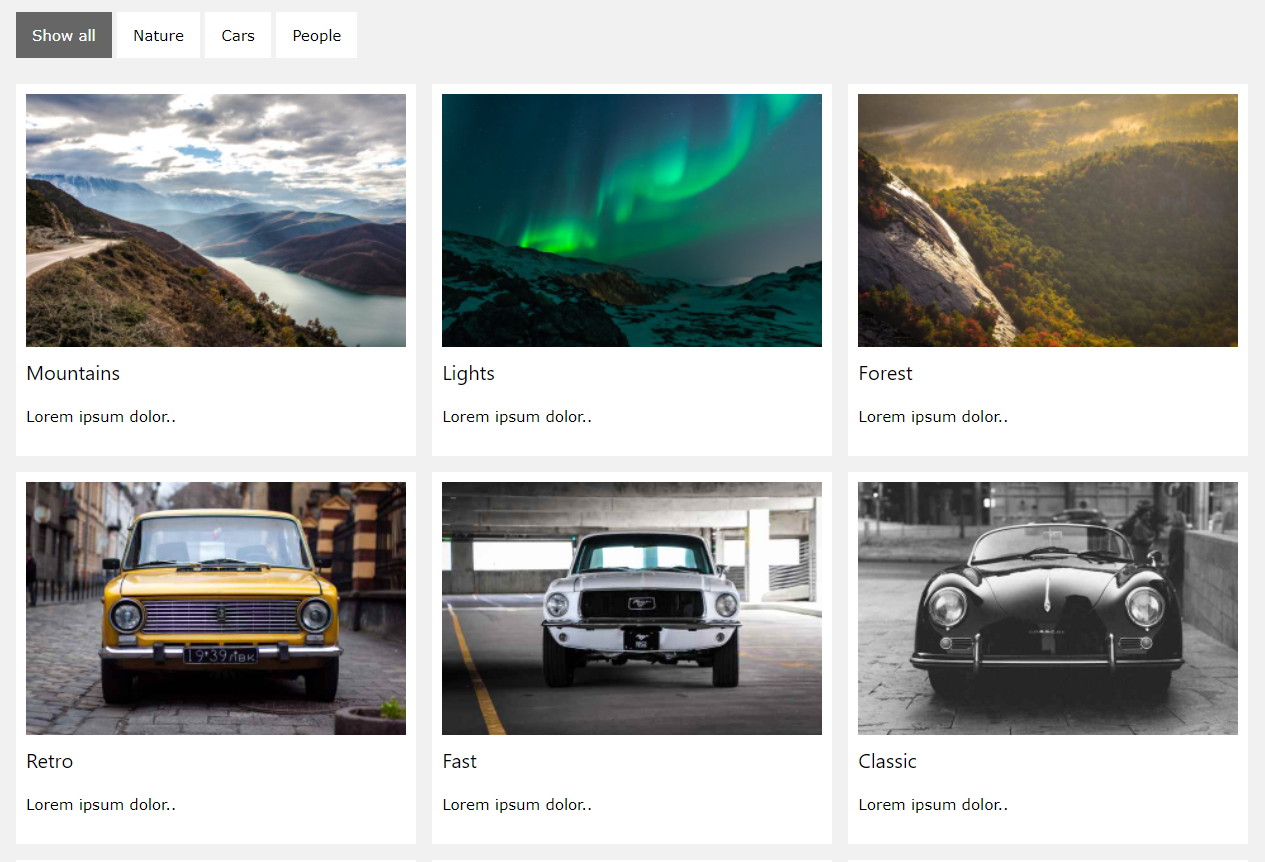
How To Create a Portfolio Website
Step 1) Add HTML:
<h2>PORTFOLIO</h2>

<div id="myBtnContainer">

  <button class="btn active" onclick="filterSelection('all')"> Show all</button>

  <button class="btn" onclick="filterSelection('nature')"> Nature</button>

  <button class="btn" onclick="filterSelection('cars')"> Cars</button>

  <button class="btn" onclick="filterSelection('people')"> People</button>

</div>
<!-- Portfolio Gallery Grid -->
<div class="row">
<div class="column nature">
<div class="content">
<img src="/w3images/mountains.jpg" alt="Mountains" style="width:100%">
<h4>Mountains</h4>
<p>Lorem ipsum dolor..</p>
</div>
</div>
<div class="column nature">
<div class="content">
<img src="/w3images/lights.jpg" alt="Lights" style="width:100%">
<h4>Lights</h4>
<p>Lorem ipsum dolor..</p>
</div>
</div>
<div class="column nature">
<div class="content">
<img src="/w3images/nature.jpg" alt="Nature" style="width:100%">
<h4>Forest</h4>
<p>Lorem ipsum dolor..</p>
</div>
</div>
<div class="column cars">
<div class="content">
<img src="/w3images/cars1.jpg" alt="Car" style="width:100%">
<h4>Retro</h4>
<p>Lorem ipsum dolor..</p>
</div>
</div>
<div class="column cars">
<div class="content">
<img src="/w3images/cars2.jpg" alt="Car" style="width:100%">
<h4>Fast</h4>
<p>Lorem ipsum dolor..</p>
</div>
</div>
<div class="column cars">
<div class="content">
<img src="/w3images/cars3.jpg" alt="Car" style="width:100%">
<h4>Classic</h4>
<p>Lorem ipsum dolor..</p>
</div>
</div>
<div class="column people">
<div class="content">
<img src="/w3images/people1.jpg" alt="People" style="width:100%">
<h4>Girl</h4>
<p>Lorem ipsum dolor..</p>
</div>
</div>
<div class="column people">
<div class="content">
<img src="/w3images/people2.jpg" alt="People" style="width:100%">
<h4>Man</h4>
<p>Lorem ipsum dolor..</p>
</div>
</div>
<div class="column people">
<div class="content">
<img src="/w3images/people3.jpg" alt="People" style="width:100%">
<h4>Woman</h4>
<p>Lorem ipsum dolor..</p>
</div>
</div>
<!-- END GRID -->
</div>
Step 2) Add CSS:
* {

  box-sizing: border-box;

}
body {
background-color: #f1f1f1;
padding: 20px;
font-family: Arial;
}
/* Center website */
.main {
max-width: 1000px;
margin: auto;
}
h1 {
font-size: 50px;
word-break: break-all;
}
.row {
margin: 8px -16px;
}
/* Add padding BETWEEN each column (if you want) */
.row,
.row > .column {
padding: 8px;
}
/* Create three equal columns that floats next to each other */
.column {
float: left;
width: 33.33%;
display: none; /* Hide columns by default */
}
/* Clear floats after rows */
.row:after {
content: "";
display: table;
clear: both;
}
/* Content */
.content {
background-color: white;
padding: 10px;
}
/* The "show" class is added to the filtered elements */
.show {
display: block;
}
/* Style the buttons */
.btn {
border: none;
outline: none;
padding: 12px 16px;
background-color: white;
cursor: pointer;
}
/* Add a grey background color on mouse-over */
.btn:hover {
background-color: #ddd;
}
/* Add a dark background color to the active button */
.btn.active {
background-color: #666;
color: white;
}
Step 3) Add JavaScript:
filterSelection("all") // Execute the function and show all columns

function filterSelection(c) {

  var x, i;

  x = document.getElementsByClassName("column");

  if (c == "all") c = "";

  // Add the "show" class (display:block) to the filtered elements, and remove the "show" class from the elements that are not selected

  for (i = 0; i < x.length; i++) {

    w3RemoveClass(x[i], "show");

    if (x[i].className.indexOf(c) > -1) w3AddClass(x[i], "show");

  }

}
// Show filtered elements
function w3AddClass(element, name) {
var i, arr1, arr2;
arr1 = element.className.split(" ");
arr2 = name.split(" ");
for (i = 0; i < arr2.length; i++) {
if (arr1.indexOf(arr2[i]) == -1) {
element.className += " " + arr2[i];
}
}
}
// Hide elements that are not selected
function w3RemoveClass(element, name) {
var i, arr1, arr2;
arr1 = element.className.split(" ");
arr2 = name.split(" ");
for (i = 0; i < arr2.length; i++) {
while (arr1.indexOf(arr2[i]) > -1) {
arr1.splice(arr1.indexOf(arr2[i]), 1);
}
}
element.className = arr1.join(" ");
}
// Add active class to the current button (highlight it)
var btnContainer = document.getElementById("myBtnContainer");
var btns = btnContainer.getElementsByClassName("btn");
for (var i = 0; i < btns.length; i++) {
btns[i].addEventListener("click", function(){
var current = document.getElementsByClassName("active");
current[0].className = current[0].className.replace(" active", "");
this.className += " active";
});
}